Blog · 5 min read
How to Bold Text in a LinkedIn Post (2025 Guide)

Timothy Durand
AI content specialist
Formatting matters more than ever on LinkedIn.
With millions of posts published every week, grabbing your reader’s attention in the first 1–2 seconds is crucial. One way to do that? Bold text.
But here’s the thing: LinkedIn doesn’t offer native formatting for bold, italics, or underlined text. So how do creators manage to highlight certain words in bold?
This article gives you the exact methods to bold text in LinkedIn posts, the tools to do it easily, the pros and cons of each, and SEO tips to make your posts both readable and high-performing
Can You Bold Text on LinkedIn Natively?
No. LinkedIn does not offer native formatting options (like bold or italic) in its post editor.
All formatting is plain text. That means no bold, no italics, no headers.
So, how do people still manage to format their LinkedIn content?
They use Unicode formatting tricks converting your normal text into characters that look bold or italic using special fonts from the Unicode standard.
Let’s look at how to do that in a clean, effective way.
3 Ways to Bold Text in LinkedIn Posts
1. Use a LinkedIn Text Formatter Tool (Recommended)
There are free tools online that let you enter regular text and convert it into bold, italic, or monospace styles using Unicode.
Best tools to use:
How to use it:
-
Write your sentence or word normally
-
Paste it into the tool
-
Copy the bold version of the text
-
Paste it back into your LinkedIn post editor
✅ Use Case Example:
-
Original: You should focus on your offer.
-
After formatting: You should focus on your 𝗼𝗳𝗳𝗲𝗿.
🔁 These tools usually provide multiple bold styles (math bold, serif bold, italic bold, etc.). Pick the one that matches your tone and remains readable.
2. Use a LinkedIn Post Generator with Formatting Options
Some advanced LinkedIn tools (like Replya.io, Taplio, or EasyGen.io) allow you to pre-format parts of your post before publishing.
Example:
-
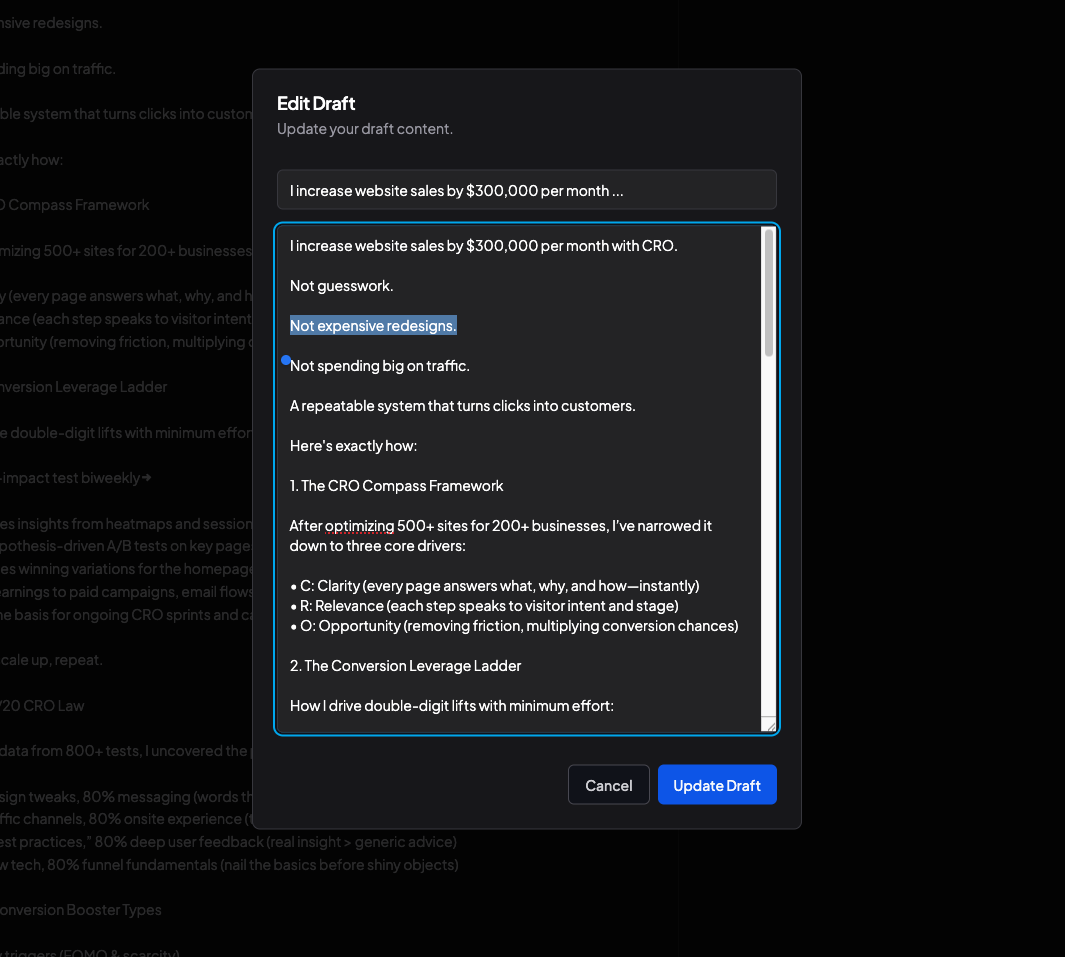
Replya.io offers drag-and-drop post creation, including the ability to format text (via Unicode) directly in the editor.
✅ Use Case Example: You’re creating a carousel or storytelling post and want to emphasize stats or calls to action.
3. Manually Insert Unicode Bold Characters
If you know the exact Unicode characters, you can manually type them using a Unicode keyboard or browser extension.
But honestly? Not recommended. It’s too time-consuming unless you’re a Unicode pro.
When Should You Use Bold in a LinkedIn Post?
Use bold to:
-
Highlight value-driven words (e.g. results, clients, mistakes)
-
Separate different parts of a story
-
Make key numbers stand out (e.g. +327% growth)
-
Reinforce your CTA (e.g. Book a call)
Don’t use bold for:
-
Whole paragraphs ❌
-
All caps bold (unless in a CTA) ❌
-
Every sentence ❌
Will Bold Text Improve SEO on LinkedIn?
Indirectly, yes.
Bold text improves readability and scannability, which boosts:
-
Time spent on post
-
Engagement rate (likes/comments)
-
Message clarity
And those behavioral signals help LinkedIn’s algorithm prioritize your content.
But it’s not a ranking factor like on a website. Bold text helps the reader experience which helps the post’s organic performance.
Final Thoughts
While LinkedIn doesn’t support native formatting, using tools like YayText, LingoJam, or AI writing tools like Replya.io makes bold text easy to add.
⚠️ Don’t overdo it, but strategic bolding can make your posts pop, especially in noisy feeds.

Still stuck on a blank page for your LinkedIn post?
Effortless LinkedIn post creation. 10× faster than writing manually, with AI hooks, proven formats, and instant edits.
No card required